
Model your data and seed it
By The Vorx Team
Every app runs on data. In Vorx you don't spin up a database, write a schema or connect an ORM — the data model is generated alongside the interface from the same plain-English description. Get the model right and the screens, forms and queries fall into place around it.
Name your entities
Start by naming the things your app is about and the fields that describe them. These usually come straight from the nouns in your prompt:
Projects have a title, status and owner. Tasks belong to a Project and have a title, an assignee and a due date.
From that, Vorx creates the tables, picks sensible field types, and builds the forms and lists to manage them. You don't have to specify every type — "a due date" is enough for Vorx to choose a date field.
A few habits that pay off:
- Use everyday names — "status", "owner", "due date" — not database jargon
- Say when a field is a choice from a set: "status is one of To do, In progress, Done"
- Mention what's required and what's optional where it matters
Say all this early. Your nouns land in the design stage, before any code exists, so naming them up front is the cheapest way to get the model you meant.
Add relationships
Most data is connected, and describing those connections is how Vorx wires the keys and queries for you:
- "A Task belongs to one Project" (one-to-many)
- "A Project has many Tasks"
- "A Contact can be linked to several Deals" (many-to-many)
Vorx sets up the relationships and the lookups, so a Project page can list its Tasks and a Task form can pick its Project from a dropdown, without you touching a join.
Seed realistic data
An empty app is hard to judge. Ask Vorx to fill it with believable rows so you can see layouts, sorting and edge cases from the first preview:
Seed about 20 projects across all statuses, each with a handful of tasks and a mix of due dates.
Realistic seed data surfaces problems early — a title that's too long, a list that needs pagination, a status with no colour. Far easier to spot with sample content than on a blank screen.
Look at what actually landed
Open Settings → Cloud → Database to browse every table and its rows, with filtering and sorting. It's the quickest way to confirm a form saved what you expected, fix a value by hand, or clear out test records when you're done with them.
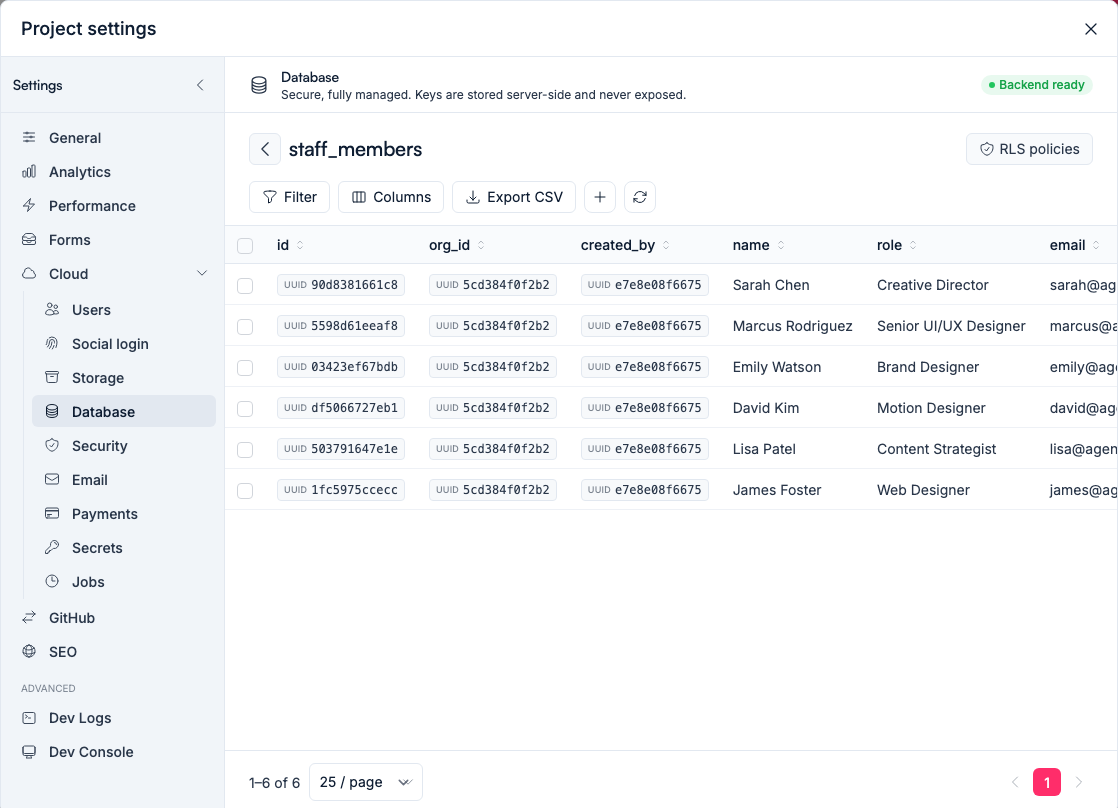
Two things to know before you edit rows there. Preview and production have separate databases, so check which one you're looking at. And row edits aren't covered by rollback — version history rewinds your app's code, not its records.
Change the shape in chat, not by hand
Structural changes — new tables, fields, relationships — belong in chat, so the screens update alongside the data:
- Add a priority field to Tasks: Low, Medium, High
- Let a Task have subtasks
- Move "owner" from Project to a separate Team the Project belongs to
Vorx updates the schema and the interface together, so they never drift apart. Renaming a column by hand in the database view will quietly break every screen that reads it.
What you get underneath
The database itself is a real one — you can run SQL against it when the grid can't express what you need, and export any table to CSV. A local-first sync layer (VorxSync: instant local writes, realtime sync between users, offline support) is on our roadmap, not in what you build today. Your records are yours.
When the model is solid, it's a natural point to add authentication so each user sees only their own data.
In the docs: Your data model and Working with your database.