
Add authentication to any app
By The Vorx Team
Most apps cross the line from prototype to product the moment they have real users. That means logins, roles and pages only the right people can see. In Vorx you don't wire up an auth library or configure a provider by hand — you describe what you want and it's built in.
Ask for auth
Adding sign-in is usually a single prompt. Tell Vorx who should be able to log in and how:
Add email and Google sign-in, and require login for everything except the landing page.
Vorx creates the sign-up and sign-in screens, the session handling behind them, and the redirects that send signed-out visitors to log in.
Be specific about which pages stay public. A marketing landing page, a pricing page or a shared invite link often should be reachable without an account; everything else can sit behind the login.
Click through it as a real user
Apps with authentication come with a test user, so you can walk the signed-in flows in the preview without registering. Vorx uses the same test user when it verifies each build — signing in and clicking the main flows before you ever see them.
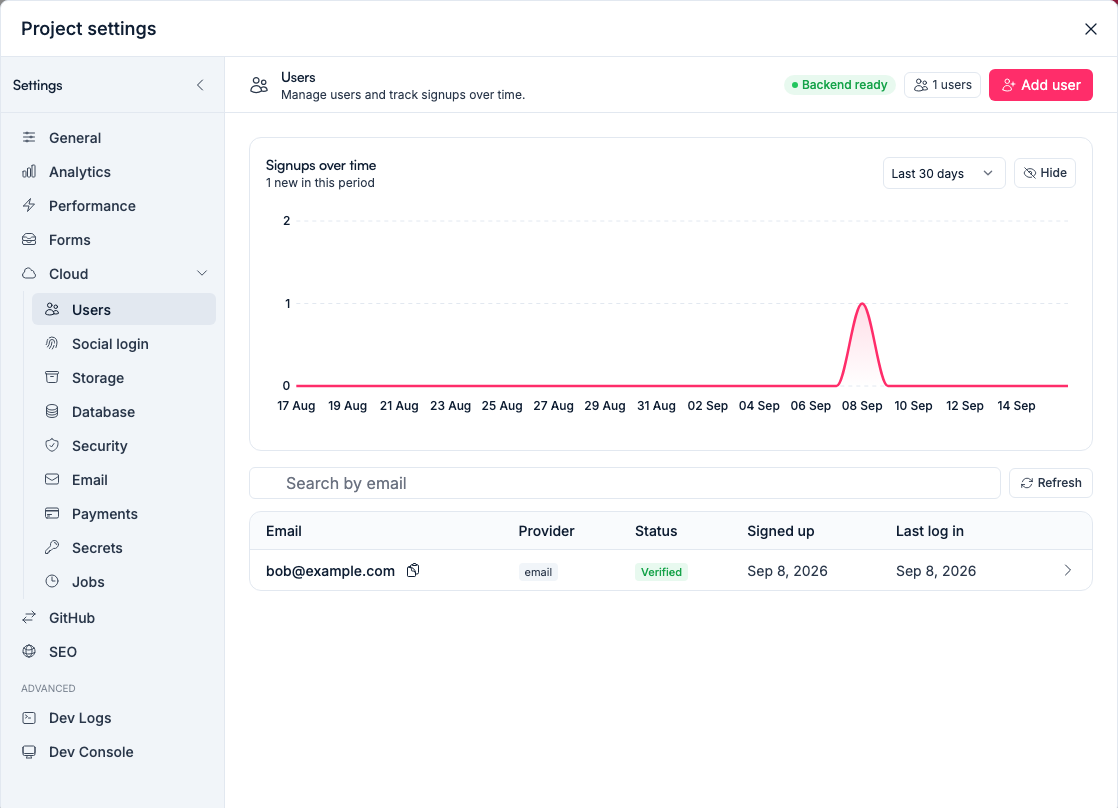
You can see and manage accounts under Settings → Cloud → Users, which is also where you check that a sign-up actually created what you expected.
Add roles
Most real apps have more than one kind of user. Describe the roles you need and what each does:
- Admin — manages users, sees everything, changes settings
- Member — works with their own data day to day
- Viewer — read-only access to shared content
Then tie roles to screens: "Only Admins can see the Team settings and Billing pages; Members see their own dashboard." Vorx hides what a role shouldn't reach and adjusts navigation so people only see what applies to them.
These are your app's roles, for your app's users. They're separate from who can edit the project in Vorx — that's a workspace setting and has nothing to do with the accounts inside the app you're building.
Protect the data, not just the screen
Hiding a page isn't protecting what's behind it. Vorx scopes records to the signed-in user by default, and that scoping is enforced in the database itself through row-level security — not merely hidden in the interface. A Member can't reach an Admin's record by guessing a URL.
When data should be shared within a team, say so: "Deals are visible to everyone in the same company, but only the owner can edit them." That rule lands on the queries, not the buttons.
Handle the edges
A real login flow is more than the happy path. Ask for the pieces your users expect, one prompt at a time:
- Password reset and forgot-password emails
- A profile page where users update their name or email
- A sign-out control in the navigation
- A sensible landing screen right after login
Test it before you ship
Sign up as a fresh user and walk the whole path: register, sign out, sign back in, confirm you land where you should. Then sign in as each role and check the restricted pages really are out of reach.
One thing to check before you publish: if you're using a provider's test keys for social login or email, they're set per project and stay in use once published. Swap them for live values under Settings → Cloud → Secrets and publish again.
For more on structuring the data your auth protects, see Model your data and seed it.
In the docs: Authentication and Social login.