

Data & backend
Social login
Let people sign in to your app with Google, Microsoft, or Apple, using your own OAuth credentials so the consent screen shows your app's name.
Give your users a one-tap sign-in with their Google, Microsoft, or Apple account. You connect your own OAuth credentials, so the account chooser and consent screen show your app's name — not Vorx's.
You set this up in your project under Settings → Cloud → Social login. Each provider takes a few minutes the first time.
Before you start
- Publish your app first. Social sign-in only completes on a real, public URL (your
*.vorx.livesite or a custom domain) — it can't finish inside the in-editor preview, because the provider needs somewhere real to send people back. - You'll need access to the Google Cloud Console (for Google), Microsoft Entra / Azure (for Microsoft), or the Apple Developer portal (for Apple) to create an OAuth app or Services ID. Google and Microsoft are free; Apple requires an active Apple Developer Program membership.
Set up Google
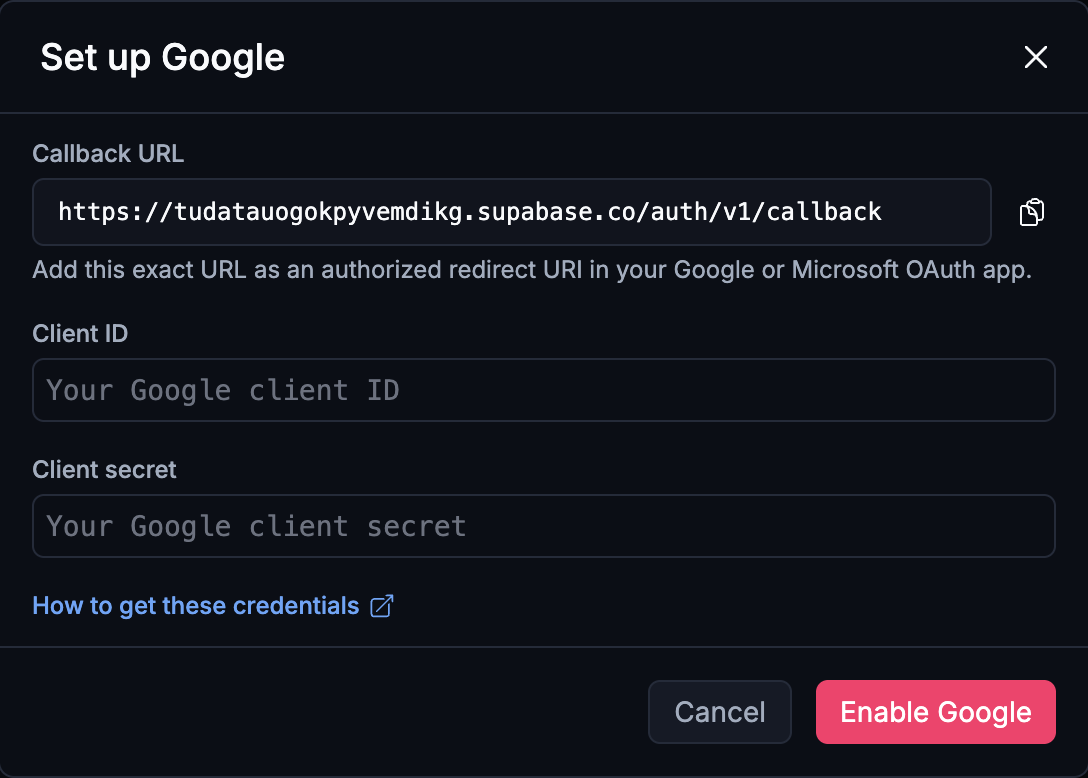
- In your project, open Settings → Cloud → Social login and choose Set up Google. Copy the Callback URL shown there — you'll need it in a moment.
- In the Google Cloud Console, go to Credentials → Create credentials → OAuth client ID, and pick Web application.
- Under Authorized redirect URIs, paste the Callback URL you copied from Vorx. It has to match exactly — scheme, domain, and path all count.
- Create the client, then copy its Client ID and Client secret back into Vorx and save.
- Reload your app's login page — Continue with Google now appears. Sign in on your published site to test it.
Set up Microsoft
- In Settings → Cloud → Social login, choose Set up Microsoft and copy the Callback URL.
- In Microsoft Entra (Azure Active Directory), go to App registrations → New registration. Under Redirect URI, choose Web and paste the Callback URL.
- Open Certificates & secrets → New client secret and copy the secret value (not the ID).
- Back in Vorx, paste the Application (client) ID and the secret. Leave the Directory (tenant) URL on its default to allow any Microsoft account, or point it at your organization's tenant to restrict it.
- Save, reload your login page, and test Continue with Microsoft on your published site.
Set up Apple
-
In Settings → Cloud → Social login, choose Set up Apple and copy the Callback URL.
-
In the Apple Developer portal, create a Services ID — this is your Client ID. Enable Sign in with Apple for it and add the Callback URL as a Return URL.
-
Create a Key with Sign in with Apple enabled and download the .p8 private key file — you only get one chance to download it. Note the Key ID shown, and your Team ID from the top of the Apple Developer site.
-
Apple doesn't hand you a plain secret — you generate one yourself: a signed JWT built from your Team ID, Key ID, and the private key. See Supabase's guide for how to generate it, then paste the resulting JWT into Vorx as the Client secret, along with the Services ID as the Client ID.
-
Save, reload your login page, and test Continue with Apple on your published site.
Apple's secret expires after 6 months at most — put a reminder in your calendar to regenerate and re-paste it before then, or sign-ins will start failing silently.
Test it
Open your published app and click the new button. You'll be sent to Google, Microsoft, or Apple, see a consent screen with your app's name, and land back in your app already signed in. Buttons only show for providers you've turned on, so there's never a dead button.
Troubleshooting
- "redirect_uri_mismatch" or a blank error after choosing an account — the Callback URL in Google/Microsoft/Apple doesn't exactly match the one Vorx shows. Re-copy it and check for a missing/extra trailing slash.
- The button doesn't appear — make sure you saved the credentials, and reload the login page. Buttons are hidden until a provider is enabled.
- It works on your live site but not the preview — that's expected. Social sign-in needs your real published URL; test there.
Prefer to keep it simple? You can always stick with email and password — social login is an optional extra on top.