

Data & backend
Authentication
Add logins, roles, and protected pages in a single prompt — email, social sign-in, and per-user data scoping included.
Most apps need a login. In Vorx it's one step: ask for it, and the sign-up, sign-in, session handling, and protected routes are generated together.
Turn on sign-in
Tell Vorx how people should authenticate and what needs a login:
Add email and Google sign-in. Require login for everything except the landing page.
Email/password, magic links, and social providers are supported. Passwords, verification, and resets are handled for you.
Roles and permissions
Describe the roles your app's users need and what each can do:
Admins manage users and settings; members only see their own records.
Vorx enforces those rules both in the UI and in the database, so a role isn't just a hidden button.
These are roles inside the app you're building — separate from the roles on your Vorx workspace, which control who can build.
Data scoped to the user
By default, records are scoped to the signed-in user, so people only ever see their own data. You can widen that deliberately — "everyone on a team shares the same projects" — when you need to.
Manage your app's users
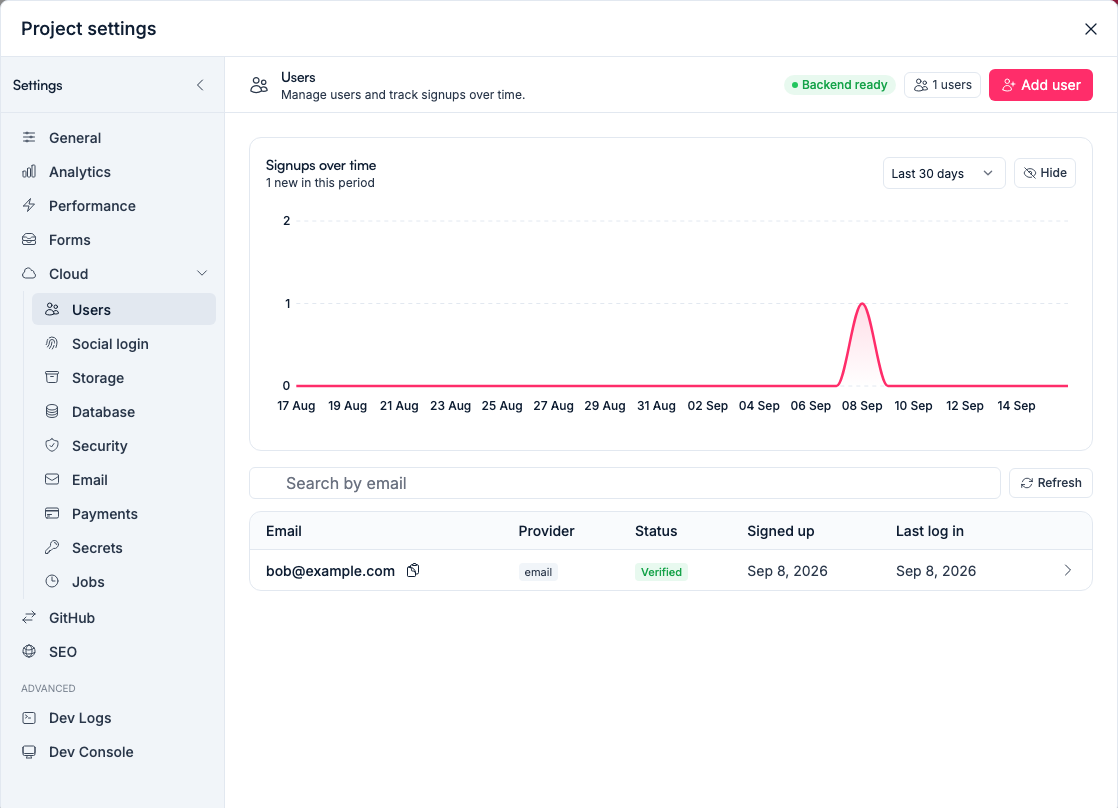
Open Settings → Cloud → Users to see the accounts in your app, check that a sign-up worked, and remove test accounts before launch.
Test users
Apps with auth come with a test user so you can click through signed-in flows in the preview without creating an account. Vorx uses the same test user when it verifies each build.
Social sign-in
Google and Microsoft sign-in use your own OAuth credentials, so the consent screen shows your app's name rather than ours. Set them up under Settings → Cloud → Social login — and note they only complete on a published URL, not in the preview. See Social login.
Branded emails
Sign-in and verification emails can be sent from your own domain — set that up under Settings → Cloud → Email. See Custom emails.
Before you launch
Sign up as a brand-new user in the preview and confirm a protected page actually redirects when signed out. It's the single check most worth doing by hand — see the launch checklist.
Enterprise sign-in
Need SSO (SAML/OIDC) or SCIM provisioning for a larger org? Contact us — those are available on enterprise plans.
Next steps
- Social login — Google and Microsoft, step by step
- Roles and permissions — access to the project itself
- Security — what's enforced where