

Building
Editing your app
Change anything by chatting, by pointing at the preview, or by editing the code directly — all kept in sync.
There are three ways to change a Vorx app, and they all stay in sync. Use whichever is fastest for the change at hand.
Edit by chat
Describe the change in plain English:
Add a notes field to each contact and show it on the contact detail page.
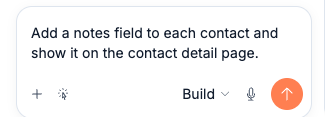
One sentence like that touches several files at once: a notes column on the contacts table, a text field in the edit form, and a section on the detail page that displays it. Vorx works out what needs to change across the UI, data model, and backend, then updates the preview. This is the right default for anything involving behaviour, data, or more than one file — most edits are one message, not a sequence of them.
Getting a good result on the first try
- Describe the outcome, not the fix. "The submit button overlaps the footer on mobile" gives Vorx more to work with than "move the button up a bit" — say what's wrong and what right looks like, and let it figure out the how.
- One change per message, for anything you're not sure about. "Add notes to contacts and also rename the Deals tab to Pipeline" usually works fine, but if you want to be certain both halves landed, send them separately and check the preview between them.
- Mention the record type by name. "Add a due date to contacts" and "add a due date to tasks" read very differently to a person, and to Vorx — be as specific as you'd be telling a colleague.
Point and edit
Switch the preview to visual mode, select an element, and describe what should change about it. This is the fastest way to fix a specific button, label, or spacing without describing where it is. See Visual edits.
Edit the code
Open the code and change it directly. Vorx picks up your edits and keeps working from them — chat and hand-edits don't fight each other. This is ideal for precise tweaks or dropping in a snippet you already have.
To work in your own editor instead, connect a repository under Settings → GitHub and pull the code down.
Which to reach for
- Use chat for behaviour, data, and anything spanning several files.
- Use point-and-edit for a specific on-screen thing you can see.
- Use code for exact, surgical changes you'd rather type than describe.
Undo and history
Every change is a checkpoint you can revert, whichever of the three routes made it. If an edit goes the wrong way, roll back and try a different prompt. Reverting doesn't call the model, so it's free — there's no cost to trying an ambitious prompt and backing out if it's not what you wanted.
That also makes checking the preview after every edit worth the few seconds it takes: catching a wrong turn immediately means undoing one message, not disentangling it from three more you've built on top of it since.
Next steps
- Visual edits — pointing instead of describing
- Working with the preview — where you'll spend most of your time
- Version history — the safety net under all three
- Fixing errors — when an edit doesn't come out right