

Building
Working with the preview
The preview is a real, running app. Use it like your users would — and edit straight from it.
Every change renders in a live, running app — not a static mockup. The preview is where most of your iteration happens.
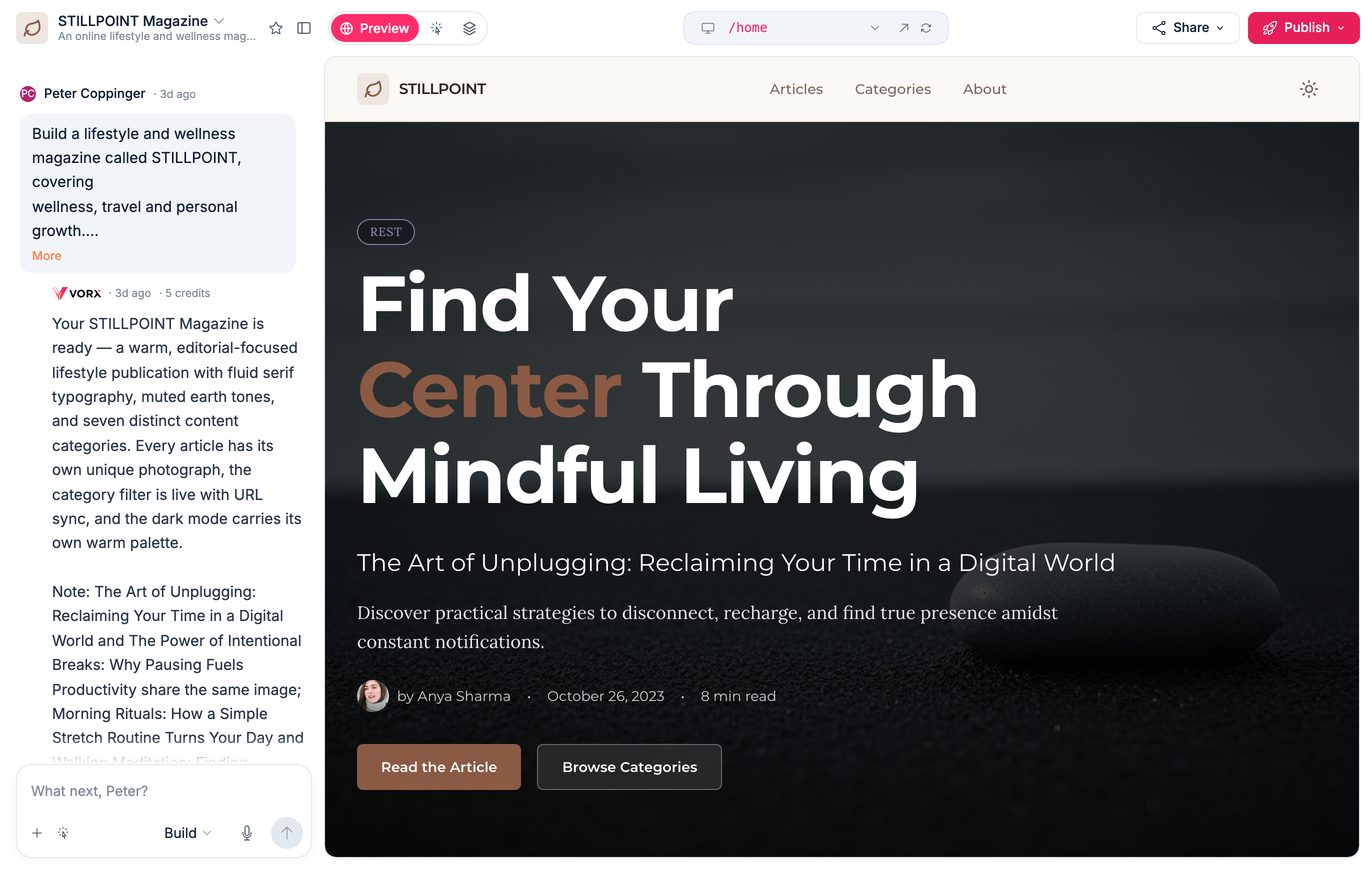
Click through it
Interact with the app as a user: submit forms, follow links, try the edge cases. This is the fastest way to find what's missing or wrong, and it's far more reliable than reading a description of what should happen.
The preview's modes
The row of tabs above the preview switches between views. Preview is always there; the rest join the row when they are relevant and otherwise live under More (the icon at the end of the row), so open that if you cannot see one:
- Visual Edits — point at an element and describe the change. Appears once your first build has succeeded. See Visual edits.
- Comments — leave notes on the app, which is how most teams collect feedback on a work in progress. In More until there are comments to show.
- Color Theme — adjust the palette and type across the whole app. In More until you open it.
Test different screens
Switch the preview to phone width to check how the app behaves on a small screen, and walk the main flow there. Ask Vorx to fix anything that breaks — this is much cheaper as you go than as a pass at the end.
Sign in as a test user
Apps with authentication come with a test user so you can click through signed-in flows without creating an account. Vorx uses the same test user when it verifies each build. You can see and manage accounts under Settings → Cloud → Users.
Share a preview
Send a read-only link to get feedback before you publish. Reviewers click through the working app without a Vorx account and without being able to change anything. See Sharing and permissions.
When the preview looks stale
The preview updates when a build finishes. If a change isn't showing, check whether a run is still going, then hard-refresh the preview to clear an occasional stale render. If it's blank or throwing, describe what you did and what you saw — see Fixing errors.
Preview is not production
The preview is your working copy, with its own data. Your users see the published app, which is separate — see Environments. Editing data in the preview never touches live records.
Next steps
- Visual edits — editing by pointing
- Environments — preview versus production
- Fixing errors — when something breaks