

Building
Visual edits
Click an element in the preview and change it directly — the precise way to make small tweaks.
Some changes are easier to point at than to describe. Visual edits let you select an element in the preview and tell Vorx exactly what you mean.
Select an element
Open Visual Edits in the tab row above the preview and click any part of your app — a button, a heading, a card. Vorx knows precisely which element you picked, so there's no ambiguity about the target.
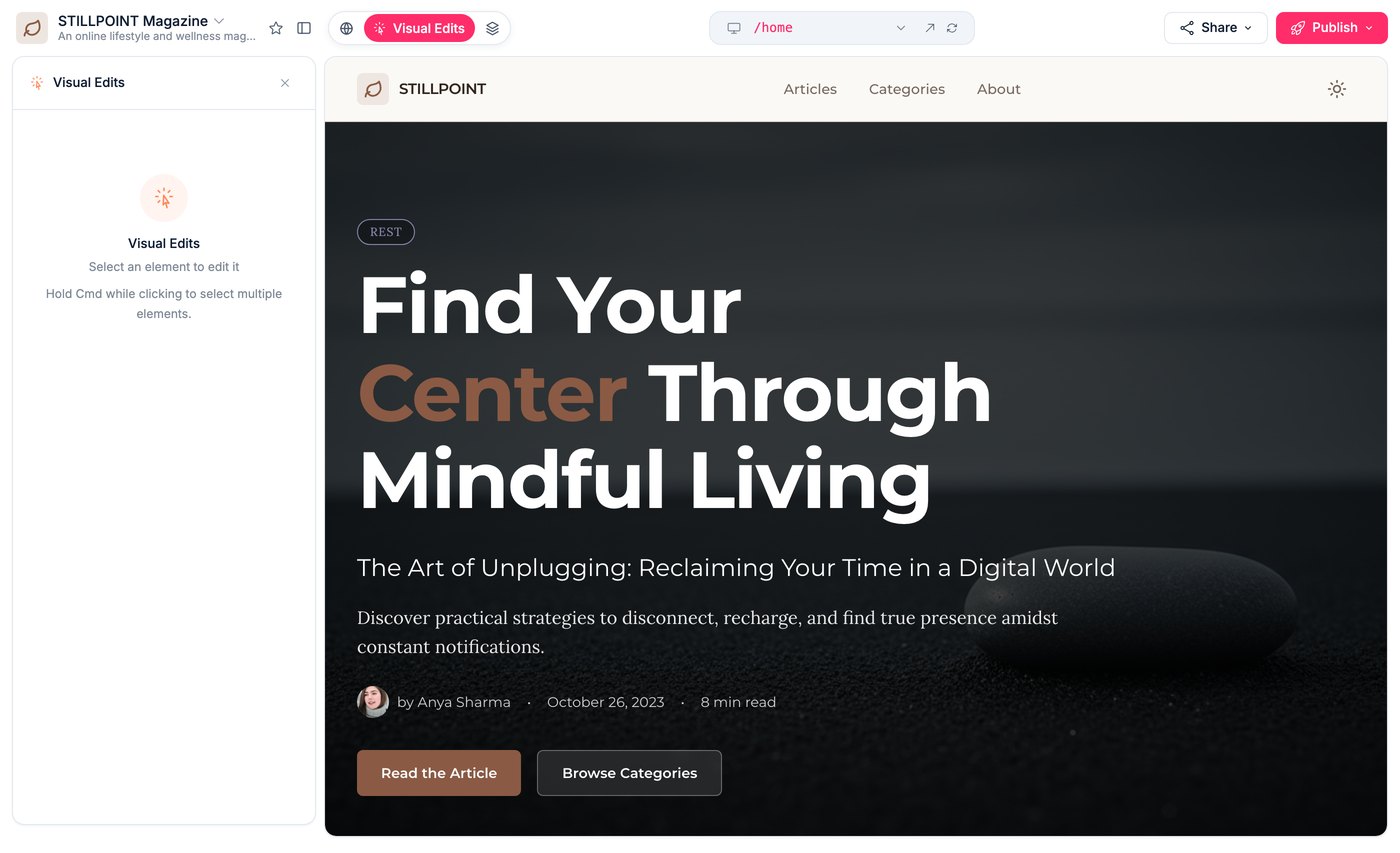
Then describe the change
With the element selected, ask for the change: "make this bigger," "change this text to Get started," "add more space below this." Because the target is exact, the edit is exact — you don't have to explain which of the four buttons on the page you meant.
When to use it
Visual edits shine for small, specific tweaks — the ones where naming the element in words is more work than pointing at it:
- Copy changes on a label, heading or button
- Spacing, alignment and size
- Swapping a colour or emphasis on one element
For broad or behavioural changes — anything touching data, routing or several screens — plain chat is usually faster. Pointing at one button is a poor way to ask for a new page.
For look and feel across the app
If you want the whole app to feel different rather than one element to change, use theme mode instead, or ask in chat for a restyle. See Components and design.
It's still a checkpoint
Visual edits are saved to your version history like any other change, so you can roll them back the same way, and they're charged like any other run.
Next steps
- Working with the preview — the other things the preview does
- Editing your app — chat, point-and-edit and code compared
- Components and design — changing the look as a whole