

Ship
Sharing and permissions
Control who can open and change each project — invite links, email invites, and workspace-wide access.
Projects are private to your team by default. Sharing controls who can reach a project and what they can do once they're in.
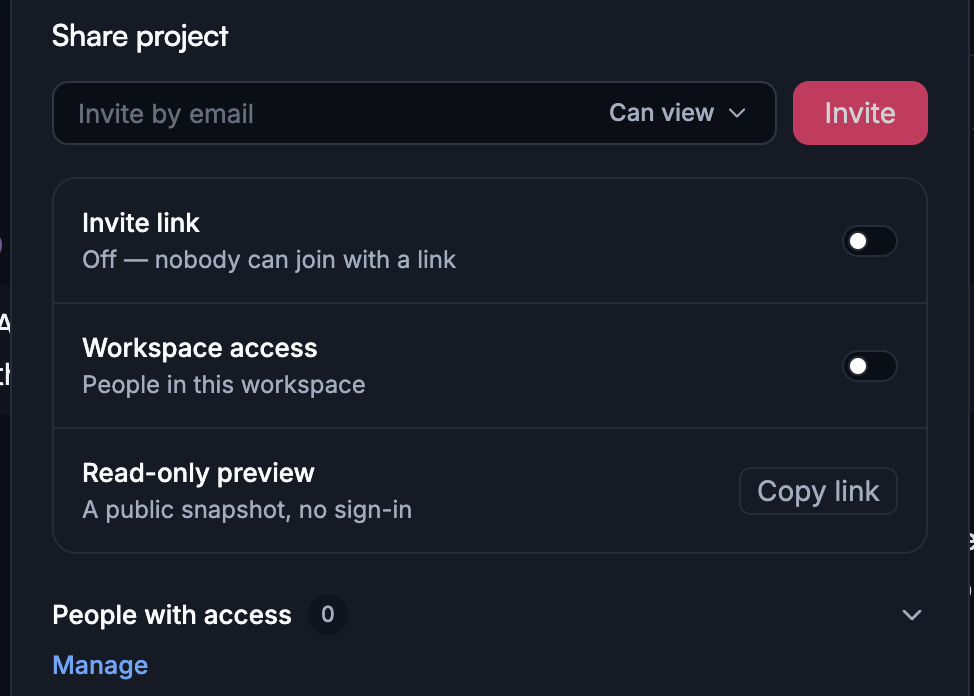
Two levels of access
Sharing a project offers two choices:
- Can view — open the project and click through it, without changing anything.
- Can edit — build and edit the app in chat.
Whichever route you share by, that's the choice you're making.
Invite by email
Invite someone directly by email address and pick whether they get Can edit or Can view. This is the right option when you know exactly who should have access.
Invite links
You can also generate an invite link and hand it out. The link carries its own permission, set when you create it, and it can be turned off again — anyone holding a disabled link loses access.
Because a link works for whoever holds it, prefer Can view for links you'll paste into a chat or an email thread, and keep Can edit for people you invite by name.
Workspace-wide access
Rather than naming people one at a time, you can open a project to everyone in your workspace as either Can edit or Can view — or leave it closed. This is the usual setting for a team's shared work.
Sharing a preview for feedback
To collect comments without giving anyone the keys, share Can view. Reviewers click through the real, working app and can leave comments on it, with no way to change anything.
Published apps are separate
A published app is public at its URL — that's the point. The project, its chat and its code stay private to your team regardless. Publishing your app never exposes how it was built.
Broader administration
Who can manage members and billing is a workspace setting, not a per-project one — see Roles and permissions.
Next steps
- Roles and permissions — workspace-level access
- Collaboration — working at the same time
- Teams — the shared workspace